
VIDSAIL 2.0.0 FOR WINDOWS
VIDSAIL: DOWNLOAD SUPPORTED MEDIA.
CONVERT LOCAL FILES
MANAGE YOUR QUEUE.
Download supported online media and convert local video or audio files with VidSail. Manage batches, queues, history, statistics, and engine updates from one modern Windows desktop app.



Supported Media Downloads
Download supported online media using the current yt-dlp engine. Choose from the formats and quality options available for each source.

Validation and Preview
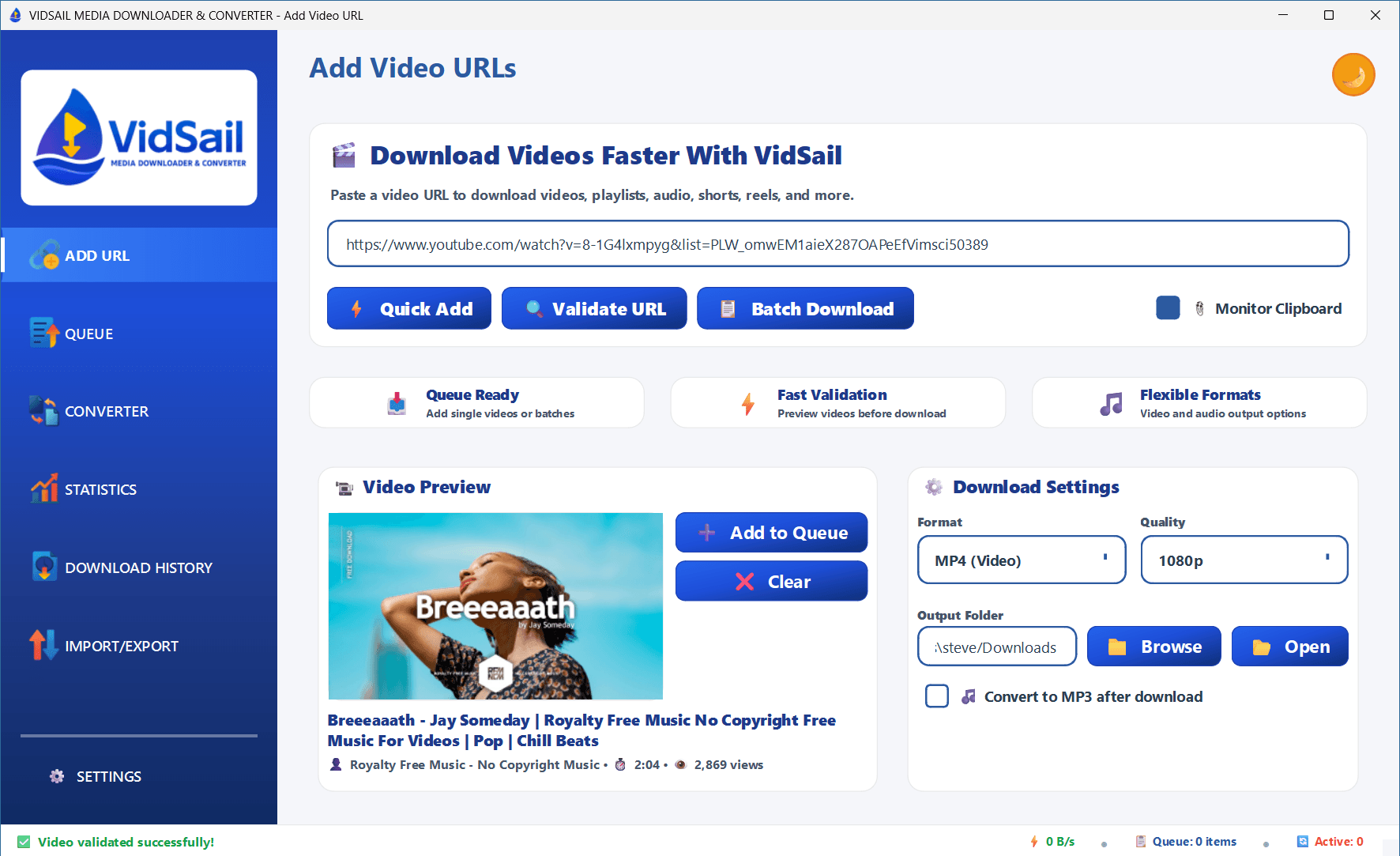
Validate a URL before downloading and preview available details such as the title, thumbnail, source, format, and quality options.

Batch and Queue Management
Add multiple URLs, import URL lists, and manage downloads with start, pause, resume, cancel, and clear controls.
Local File Conversion
Convert supported video and audio files already stored on your computer. Add individual files or complete folders and choose the output format, quality, and destination.
Light and Dark Themes
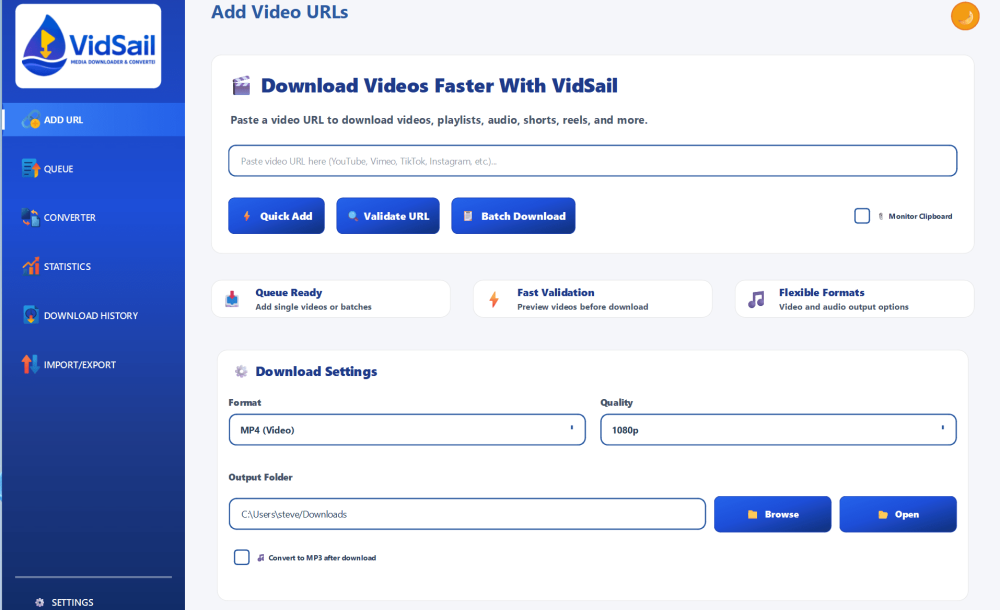
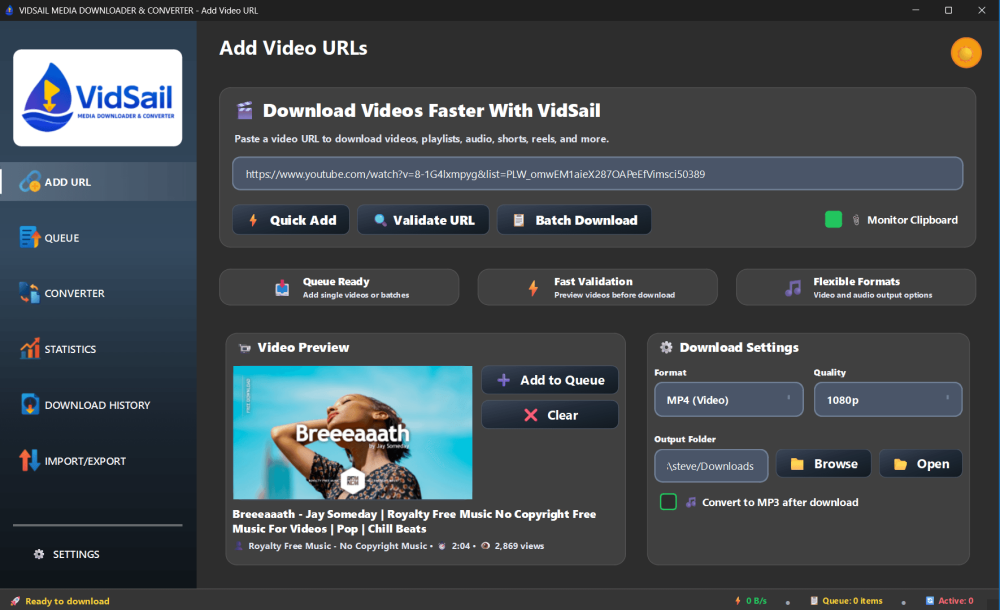
Switch between light and dark themes, adjust the application font size, and customise the interface for your screen and preferred workflow.
Four-Engine Health and Updates
Check the status and version of yt-dlp, FFmpeg, FFprobe, and Deno. Recheck engine health and install SHA-256-verified engine updates when available.

Media downloading, queue management and file conversion in one desktop app
VidSail is a free Windows application for downloading supported online media, managing batches and queues, converting local files, reviewing activity, and maintaining the external media engines used by the app.
Supported Media Downloads
- Add supported online media URLs through Quick Add or full validation
- Choose from the formats and quality options available for the source
- View live progress information including speed, size and estimated time
- Use configurable concurrent downloads to suit your connection
Validation & Preview
- Validate a URL before placing it in the queue
- Preview the title, thumbnail, source and available media details
- Cancel an active validation request when a link is incorrect or slow
- Use Quick Add when full preview information is not required
Download Queue
- Start, pause, resume or cancel queue activity
- Use per-download controls for individual items
- Clear completed items or reset the complete queue
- Protect existing files by safely skipping duplicate output
Batch & Import / Export
- Add multiple URLs through the dedicated Batch Download workflow
- Import a plain-text file containing one URL per line
- Process up to 100 URLs in a supported batch or import session
- Export the current queue as a reusable text backup
Local File Converter
- Add individual media files or select a complete folder
- Convert supported local video and audio files
- Choose the output format, quality and destination folder
- Keep original files and control whether existing output is overwritten
Clipboard Monitoring
- Detect supported media URLs copied to the Windows clipboard
- Turn clipboard monitoring on or off at any time
- Optionally add detected URLs directly to the queue
- Review recent clipboard detection activity inside Settings
Statistics & Activity
- Review completed, failed and total download counts
- See estimated storage used by completed downloads
- Monitor current and average speed information
- Review recent download activity and status changes
Download History
- Review completed, failed and skipped download records
- Search and filter previous download activity
- See the title, format, status, size, date and saved path
- Clear or export history records when required
Modern Desktop Interface
- Switch between light and dark application themes
- Adjust the application font size to suit your screen
- Use clear sidebar navigation for every major feature
- View queue count, speed and active-download status at a glance
Seven Settings Tabs
- General, Downloads, Interface and Clipboard controls
- Tools, Engines and Advanced diagnostic settings
- Configure update checks, notifications, timeouts and retries
- Save preferences or restore the default configuration
Four External Media Engines
- yt-dlp for supported media information and downloads
- FFmpeg for merging, conversion and media processing
- FFprobe for media analysis and diagnostics
- Deno for JavaScript challenge processing when required
Updates, Health & Diagnostics
- Check application and engine update availability separately
- Verify downloaded update packages with SHA-256 checks
- Recheck engine installation, version and location information
- Open diagnostic logs when validation, downloading or conversion fails
Download supported media in four simple steps
Add a supported URL, choose your download settings, validate the media when needed, and manage everything from the VidSail queue.

Copy a Supported URL
Copy the media URL from your browser or another application. Add one link, open Batch Download for multiple links, or import a plain-text file containing one URL per line.

Paste and Choose Settings
Paste the link into VidSail’s Add URL page. Choose the available format and quality, then confirm the folder where the downloaded file will be saved.

Validate or Quick Add
Select Validate URL to check the link and preview available media details. Use Quick Add when you trust the link and do not require a preview first.

Manage the Queue
Add the item to the queue and monitor its progress. Start, pause, resume, cancel, or clear downloads using VidSail’s queue controls.